When Ubuntu founder Mark Shuttleworth announced that GNOME would replace Unity in Ubuntu 18.04, I started exploring other GNOME-based Linux distributions. I eventually discovered elementary OS, which markets itself as a fast and open replacement for Windows and macOS. I decided to give it a go.
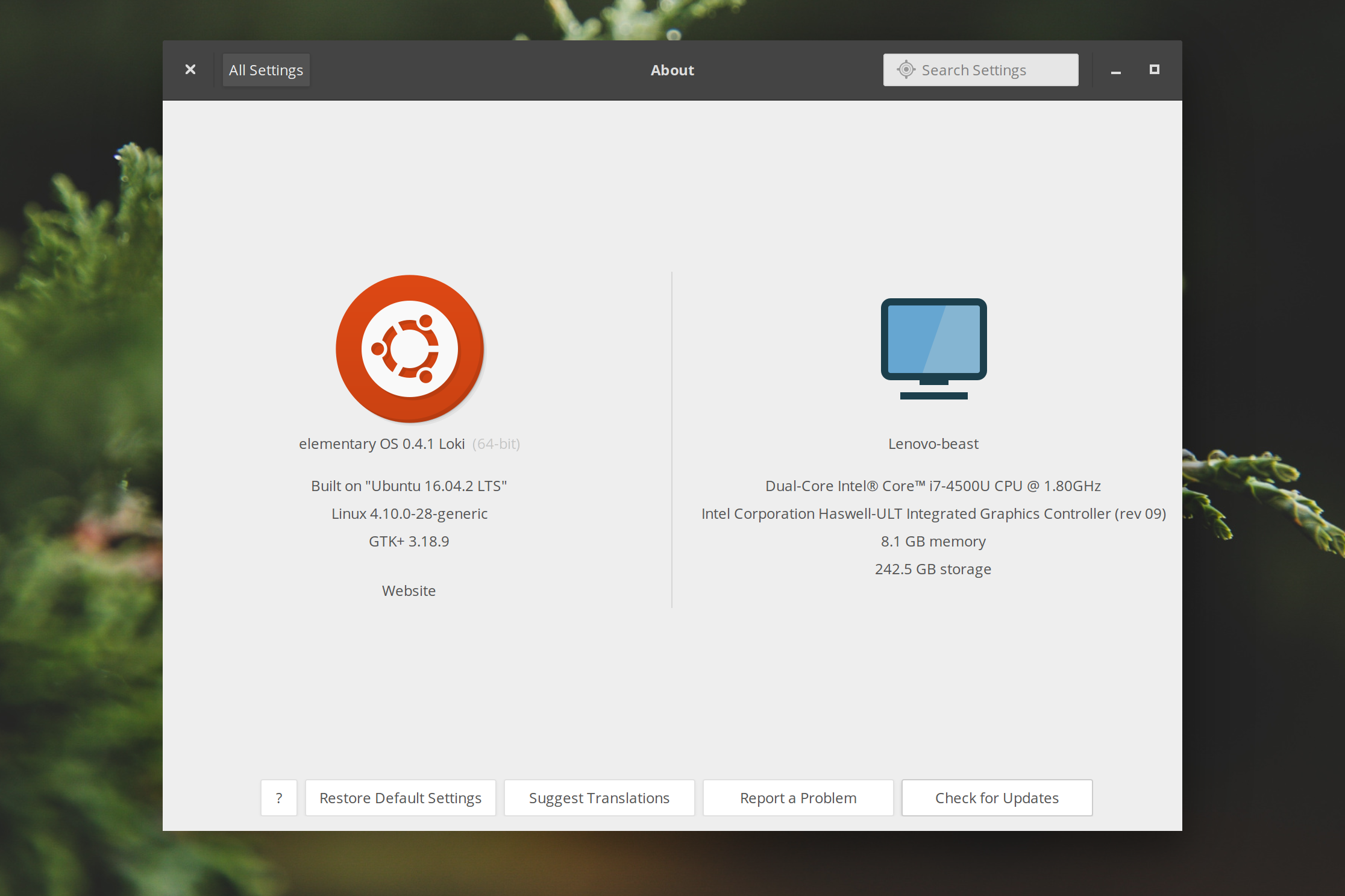
I installed elementary OS on my Lenovo Yoga 2 Pro, and the process was surprisingly fast and straightforward. After installation, I researched what other users were doing to optimize their setups, drawing inspiration from posts like 11 Things To Do After Installing elementary OS 0.4 Loki and 24 Things To Do After Installing elementary OS Loki.
To help others (and my future self), I’ve documented the exact steps I took to configure my system.
Using the articles mentioned above and a few other resources, here is my post-installation checklist.
1. Update the System
The first step after any Linux installation is ensuring everything is up to date. Open your terminal and run:
sudo apt-get update && sudo apt-get upgrade2. Install GDebi
If you prefer a graphical interface for installing .deb files rather than using the terminal, GDebi is an essential tool.
sudo apt install gdebi3. Enable PPA Support
By default, PPA (Personal Package Archive) support is disabled in Loki. Since much of the software I use is available via PPA, I enabled it with:
sudo apt-get install software-properties-common4. Install TLP for Battery Optimization
As recommended by It’s FOSS, TLP is excellent for managing CPU temperature and prolonging battery life on laptops.
sudo apt install tlp tlp-rdw5. Install Redshift
To protect your eyes during late-night sessions, Redshift adjusts the color temperature of your screen based on your surroundings.
sudo apt-get install redshift redshift-gtk6. Fix Samba CPU Usage
A bug introduced in Ubuntu 16.04 can cause Samba to consume 100% of your CPU. While I didn’t experience this myself, I followed the proactive advice to change the process permissions:
sudo chmod 744 /usr/lib/gvfs/gvfsd-smb-browse7. Disable Guest Sessions
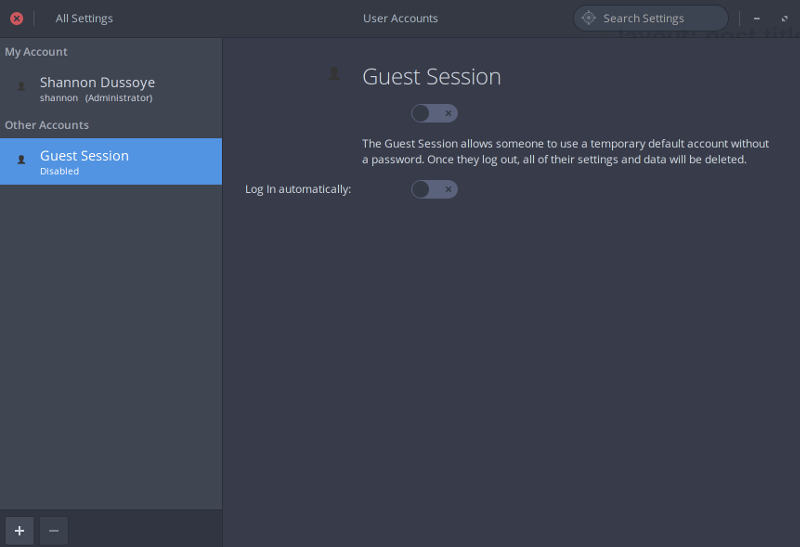
For better security, you can disable the guest account. Go to System Settings > User Accounts and toggle off Guest Session.
8. Install Firefox
While elementary OS comes with Epiphany, I found it lacking for my daily needs, so I switched to Firefox.
sudo apt install firefox9. Install LibreOffice
For document editing, spreadsheets, and presentations, LibreOffice is the go-to free and open-source suite.
sudo apt install libreoffice10. Configure Default Applications
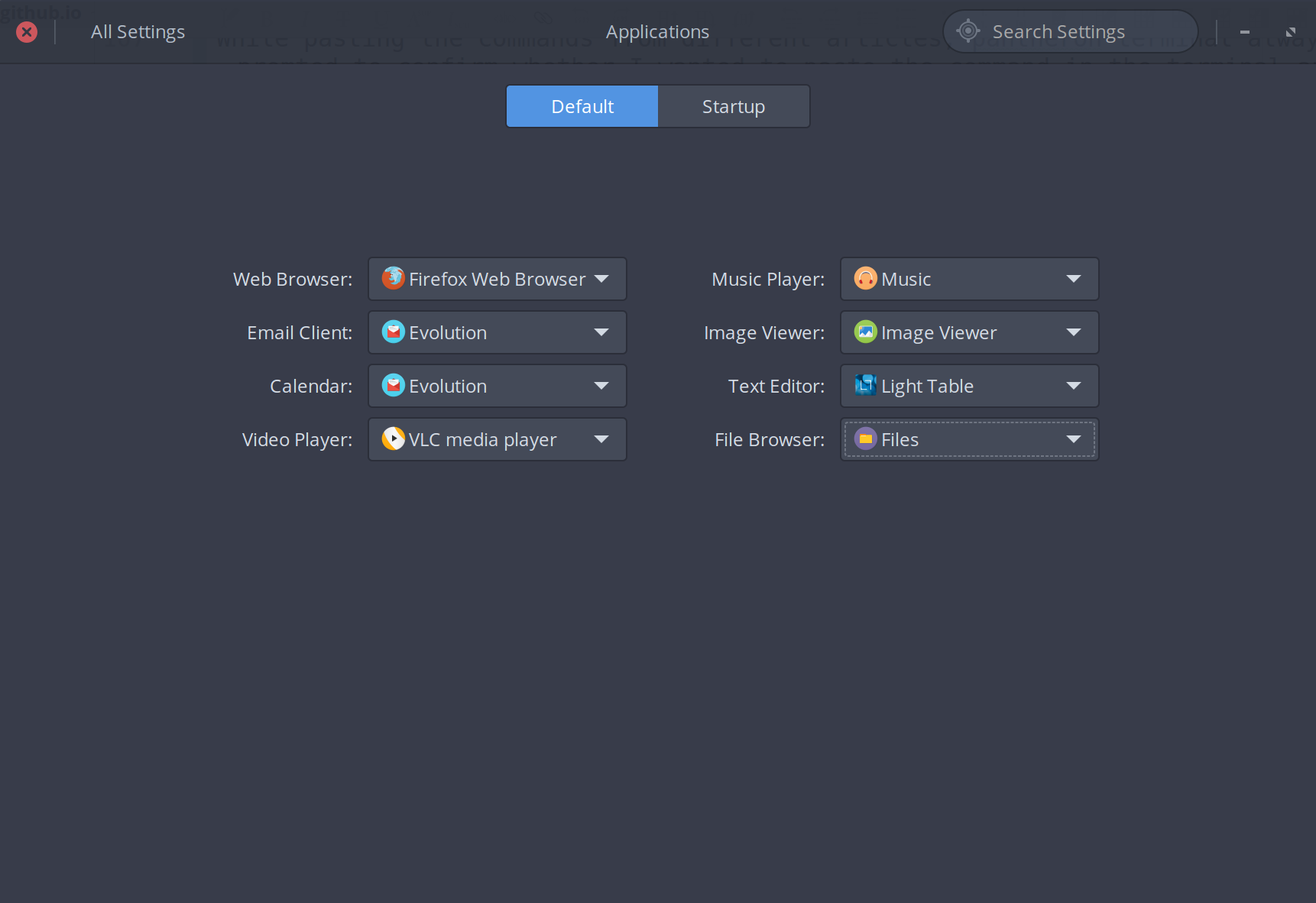
Navigate to System Settings > Applications to set your preferred defaults. Here is my current setup:
11. Adjust Pointer Speed
Go to System Settings > Mouse & Touchpad to fine-tune your tracking speed.
12. Enable Tap-to-Click
For laptop users, ensure Tap to Click is enabled under the Mouse & Touchpad settings for a smoother experience.
13. Remove Unused Software
Like any OS, elementary comes with some pre-installed software that I personally don’t use. I decided to purge these to keep the system clean.
Note: Do not remove the music player (Audience/Music), as I found it caused issues with Spotify’s dependencies.
sudo apt purge screenshot-tool
sudo apt purge simple-scan
sudo apt purge epiphany-browser
sudo apt purge pantheon-mail
14. Install Timeshift
Coming from Windows, I missed the ability to restore the system to a specific date. Timeshift provides a similar “System Restore” feature for Linux system files and settings. You can find installation instructions here.
15. Install the Full Version of Plank
The version of Plank (the dock) shipped with elementary OS has certain preferences locked. To get the fully customizable version, use Rico’s PPA:
sudo add-apt-repository ppa:ricotz/docky
sudo apt-get update
sudo apt-get install plank
To configure it, hold Ctrl while right-clicking the dock and select Preferences.
16. Install Y PPA Manager
To keep track of all the PPAs I add and remove, I use Y PPA Manager. It provides a simple GUI for managing repositories.
sudo add-apt-repository ppa:webupd8team/y-ppa-manager
sudo apt-get update
sudo apt-get install y-ppa-manager
17. Disable Terminal Paste Prompts
By default, Pantheon Terminal prompts for confirmation every time you paste a command. I found this annoying, so I disabled the warning in the terminal settings.
18. Install tweak tools
To unlock deeper customization options, install elementary-tweaks:
sudo add-apt-repository ppa:philip.scott/elementary-tweaks
sudo apt-get update
sudo apt-get install elementary-tweaks
19. Install Numix Icons
I’m a big fan of the Numix Circle icon pack. It gives the OS a very clean, modern aesthetic.
sudo add-apt-repository ppa:numix/ppa
sudo apt-get update
sudo apt-get install numix-icon-theme-circle
20. Enable the Super Key for the Applications Menu
Coming from Windows, I’m used to hitting the “Start” (Super) key to launch the menu. In elementary OS, you can enable this behavior with these commands:
gsettings set org.gnome.mutter overlay-key "'Super_L'"
gsettings set org.pantheon.desktop.gala.behavior overlay-action "'wingpanel --toggle-indicator=app-launcher'"
21. Evolution Mail
I’ve tried Nylas and Thunderbird, but neither quite fit my workflow. After switching to elementary OS, I discovered Evolution Mail and have been very satisfied with its performance and feature set.
sudo add-apt-repository ppa:fta/gnome3
sudo apt-get update
sudo apt-get install evolution
22. Install Atom
As a developer, my text editor is my most important tool. While I’ve used Sublime and Visual Studio Code, I currently prefer Atom as my daily driver.
sudo add-apt-repository ppa:webupd8team/atom
sudo apt-get update
sudo apt-get install atom
23. Install Spotify
Spotify is my go-to for music streaming. You can find their official Linux installation instructions here.
24. Disable Pantheon Terminal Tabs
I enjoy using Pantheon Terminal, but I’m not a fan of its tab management. I found a way to disable them to keep my workspace cleaner.
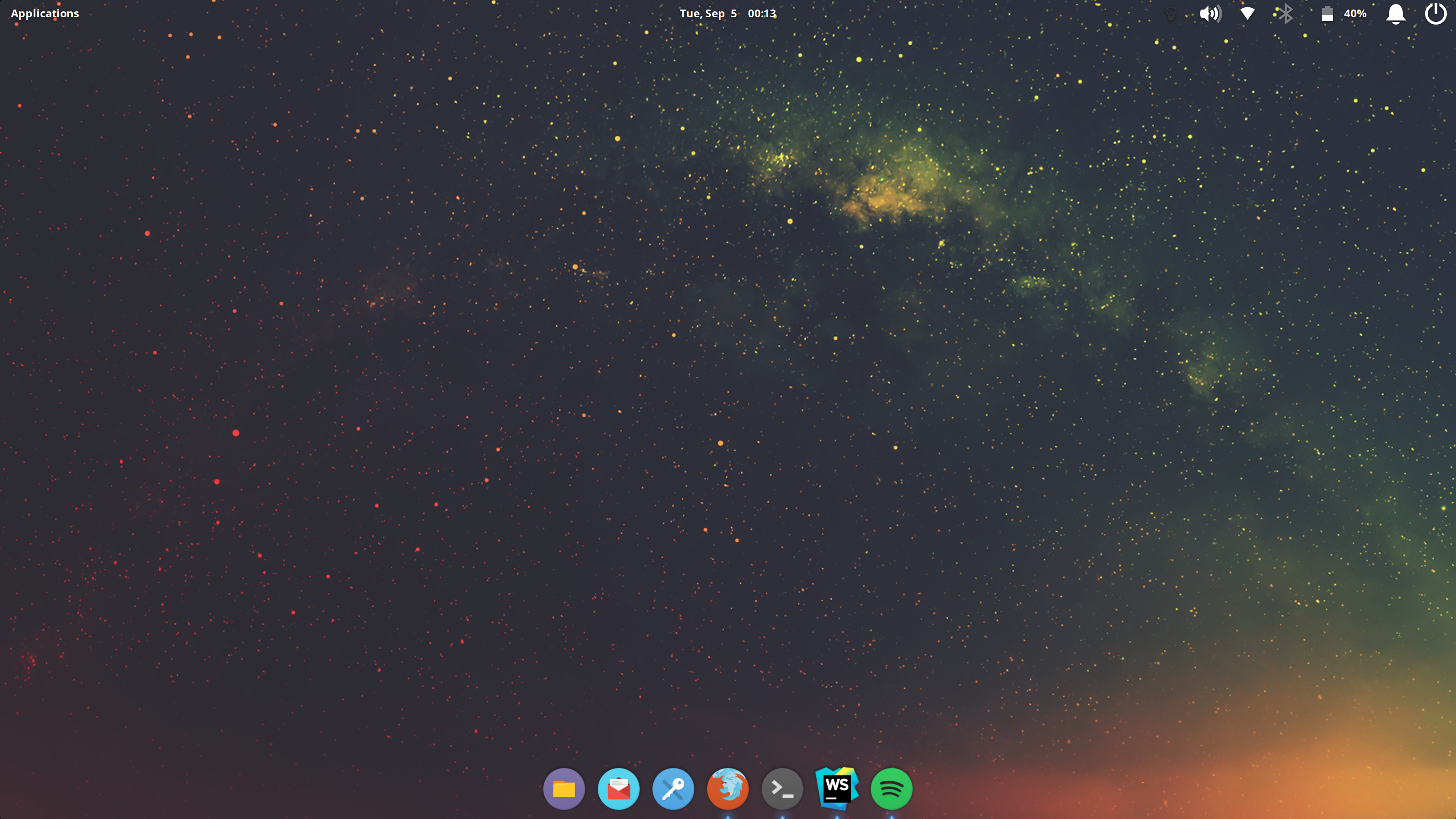
A few things have changed since I first started drafted this post, but I’m finally happy with the result. Here is a look at my final desktop setup: